
How to Create a Time Trigger
Section titled “How to Create a Time Trigger”Use Time Triggers to run an automated action on a fixed calendar schedule (weekly or monthly). This guide follows the Recurrence cards in the form: pick a pattern, fill the fields that appear, then set Time and Start Date as needed.
Step 1: Navigate to Time Triggers
Section titled “Step 1: Navigate to Time Triggers”From the main sidebar, expand Maintenance and select Time Trigger.
Step 2: Open the creation form
Section titled “Step 2: Open the creation form”Click + Create in the top-right of the list.
Step 3: Fill in the main fields
Section titled “Step 3: Fill in the main fields”| Field | What to do | Required |
|---|---|---|
| Name | Short, clear name for this schedule (e.g. “Weekly PM — Line A”). | Yes |
| Recurrence | Choose Weekly, Monthly (Specific Days), or Monthly (Last Days). Each card shows its own fields and an At time (see Step 4). | Yes |
| Start Date | First day the schedule may run. If this day is not part of the pattern, the first run moves to the next matching occurrence. | Optional |
| End Date | Last day the trigger may run; after this date it stops. | Optional |
| Description | Internal notes on what this trigger is for. | Optional |
Execution time is set with At inside the selected Recurrence card (some layouts also show a Time row below the cards—use the same moment of day consistently).
Note: Start Date and End Date bound the schedule. End Date is a hard stop.
Step 4: Configure Recurrence
Section titled “Step 4: Configure Recurrence”Recurrence is a required block: you pick one card (radio). Only the selected pattern’s fields apply.
Weekly
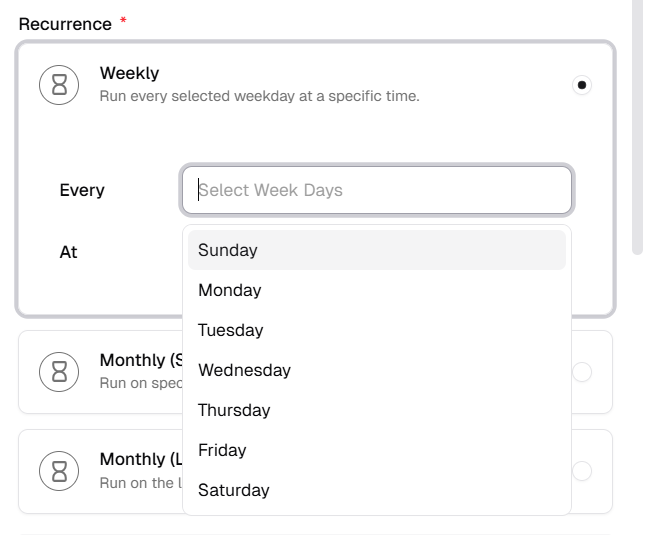
Section titled “Weekly”Weekly runs on chosen weekdays at one time.
- Select the Weekly card (“Run every selected weekday at a specific time”).
- Every: open Select Week Days and pick one or more days (Sunday–Saturday). A grey row in the list is usually hover or keyboard focus, not a finished choice. Click each weekday to add it; Every should then show tags or labels for those days instead of only the placeholder.
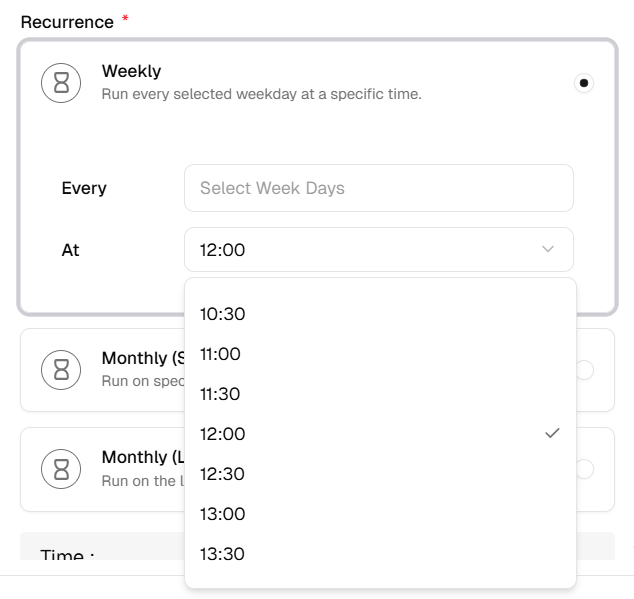
- At: choose the run time from the dropdown (list is usually in 30-minute steps).
Monthly (Specific Days)
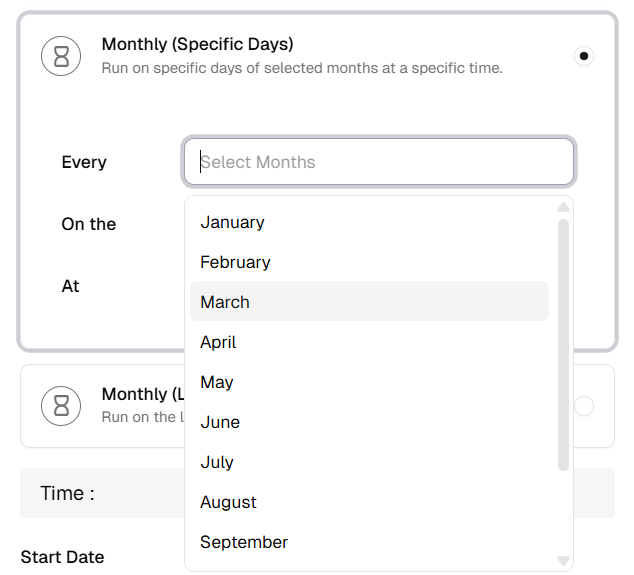
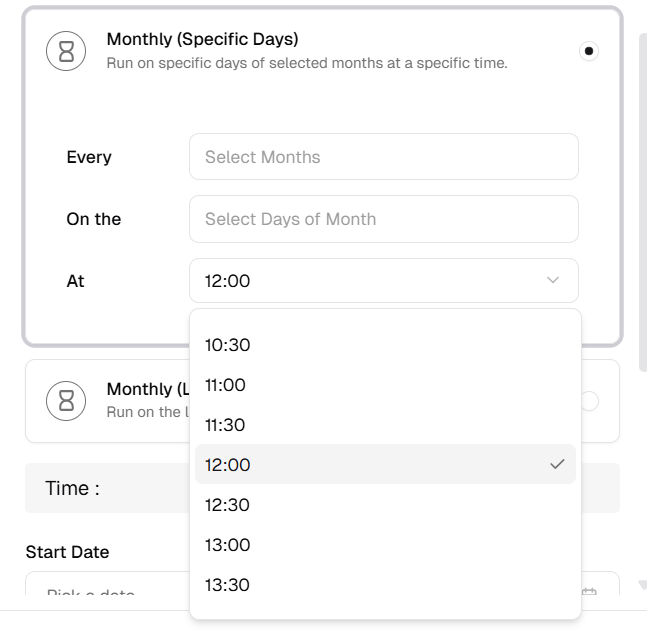
Section titled “Monthly (Specific Days)”Monthly (Specific Days) runs on chosen calendar days in chosen months, at one time.
- Select Monthly (Specific Days) (“Run on specific days of selected months at a specific time”).
- Every: Select Months — pick which months apply (multi-select).
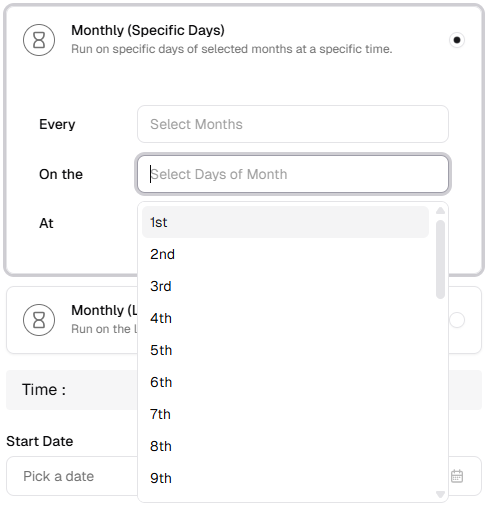
- On the: Select Days of Month — pick ordinal days (1st, 2nd, … last day of month as offered).
- At: choose the execution time from the dropdown (half-hour steps, same style as Weekly).
Monthly (Last Days)
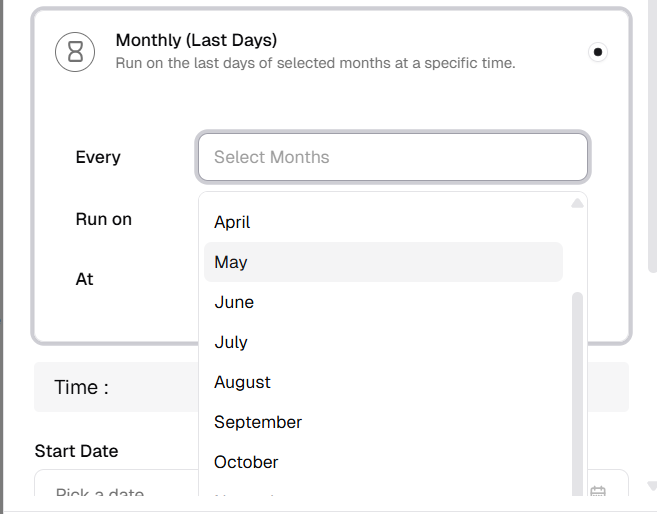
Section titled “Monthly (Last Days)”Monthly (Last Days) runs relative to the end of selected months (last day or a few days before), at one time.
- Select Monthly (Last Days) (“Run on the last days of selected months at a specific time”).
- Every: Select Months — which months the rule applies to.
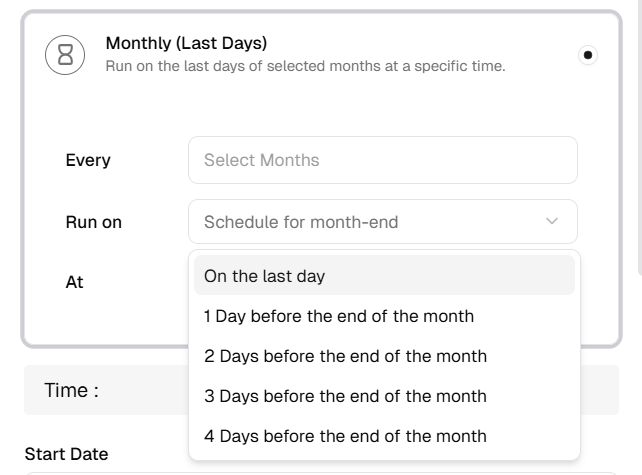
- Run on: choose how the run is anchored (e.g. Schedule for month-end, then pick On the last day or 1–4 days before the end of the month).
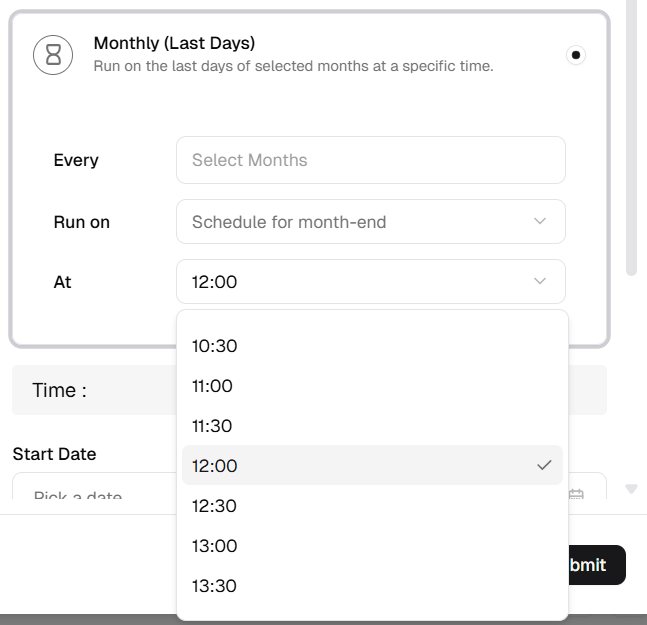
- At: choose the execution time from the dropdown (half-hour steps).
Example configurations
Section titled “Example configurations”These three examples show how the same form maps to real schedules. Adjust names, dates, and times to your site.
Example 1 — Weekly line check
Section titled “Example 1 — Weekly line check”| Piece | Value |
|---|---|
| Name | Weekly PM — Line A |
| Recurrence | Weekly |
| Every (week days) | Monday, Thursday |
| At | 08:00 (or your preferred half-hour slot) |
| Start Date | Next Monday (optional; first run snaps to the next matching day if needed) |
| End Date | (empty — runs until you edit or disable) |
Runs twice per week at the same time on the days you selected.
Example 2 — Monthly on fixed calendar days
Section titled “Example 2 — Monthly on fixed calendar days”| Piece | Value |
|---|---|
| Name | Month-start safety review |
| Recurrence | Monthly (Specific Days) |
| Every (months) | All twelve months, or only e.g. January, April, July, October |
| On the (days of month) | 1st (add 15th too if you want mid-month as well) |
| At | 09:30 |
| Start Date | (optional) |
Runs on each chosen calendar day inside each chosen month.
Example 3 — Month-end close
Section titled “Example 3 — Month-end close”| Piece | Value |
|---|---|
| Name | End-of-month report |
| Recurrence | Monthly (Last Days) |
| Every (months) | Every month, or only months where closing matters |
| Run on | On the last day of the month (or 1 day before the end if you need a buffer) |
| At | 18:00 |
| End Date | (optional) last day of the fiscal year if the rule should stop |
Runs relative to month end, not a fixed day number like the 30th.
Step 5: Save
Section titled “Step 5: Save”Click Submit. The system computes the next run and shows it in Next Run Date on the list once the trigger is saved.
To review past executions after saves or changes, open the trigger’s detail page and use the History tab — see How to View Time Trigger History.